


How to Leave a Google Review Less Than a Minute: A Full Guide for Beginners
You can leave a review less than a minute after reading this article; after this, you don’t need to read or watch any video about it.
I am creating 2 outlines that will make it easier for you to read the article.
Outline:
Way no. 1: How to leave a Google review using your smartphone?
- Open Google Maps
- Sign In to Your Google Account
- Search for the Business on Google Map
- Scroll Down and Open the Reviews Section
- Choose a Star Rating
- Write Your Review
- Add Photos (Optional)
- Tap “Post”
Way No. 2: How to leave a Google review using your desktop or laptop?
- Open your browser and search Google Maps.
- Then Sign in to your Gmail account
- Then in Google Maps, search for the business
- Click on review section and click on (write a review)
- Choose your rating and write the review
- Add photo is optional
- Then click on post
How to Leave a Google Review Using a Smartphone?
Step 1: Open Google Maps
Take your smartphone and open Google Maps. If you don’t have the Google Maps app, then download it or use any browser that is available on your phone.
Step 2: Sign In to Your Google Account
Then tap on your Google account icon and sign in to your Gmail. At the end of this article, I will tell you how to write a review without a Google account.
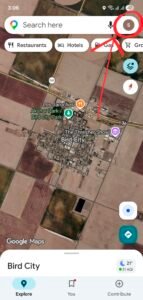
Step 3: Search for the Business on Google Maps.
In search bar, write the business name that you want to write a review
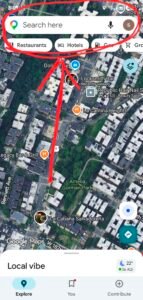
Step 4: Scroll Down and Open the Reviews Section
Scroll down, and then you will see the (Reviews) section; click on it. After that you will see Write a review option.
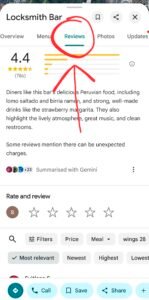
Step 5: Choose a Star Rating
Now you have to choose a rating based on your experience. If you have good experience, then I will prefer to choose 5 stars because it will be good for his brand growth and will encourage him more. Sorry for my opinion. Now let’s go to the next step.
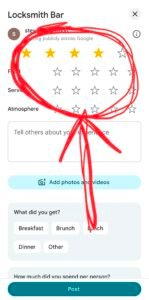
Step 6: Write Your Review (your experience)
Write down some details about how you felt after using their product or service, how their staff behaved, what their products or food was like, and if you have any advice for them; write that down too.
Step 7: Add Photos (Optional)
If you want to add some evidence to your experience, you can add some photos if you want, for example, to show what their product quality was like or what their food was like. If you want to do that, tap on Add photos & videos.

Step 8: Tap “Post.”
To submit your review, click on Post.

How to Leave a Google Review Using Your Desktop or Laptop?
Publishing a review from a smartphone is almost the same as publishing a review from a desktop or laptop. You just have to use your browser. Let’s start the easy process:
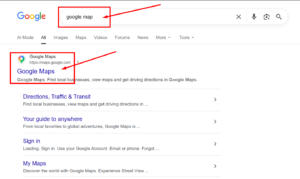
Step 1: Open your browser and search Google Maps
Open any browser that is available on your desktop or laptop and search for Google Maps.
Then open Google Maps.
Step 2: Then Sign in to your Gmail account
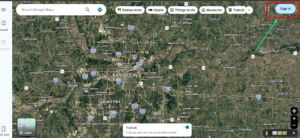
In the right top corner you will see “Sign In.” Sign in to your Google account or Gmail account.
Step 3: Then in Google Maps, search for the business
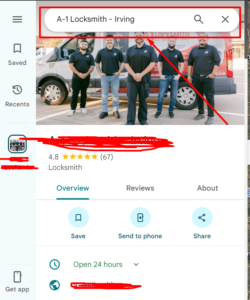
In the Google Maps search bar, search the business page you want to leave a review.
Step 4: Click on review section and click on “Write a review.”
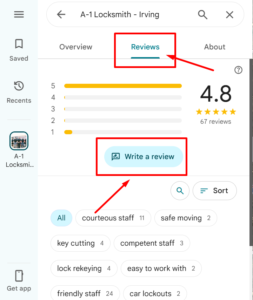
Now you can see the “Write a review” section; just click on it and write your review.
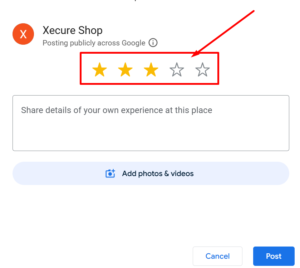
Step 5: Choose your rating and write the review
Now let’s choose the rating based on your experience. And write your experience in detail.
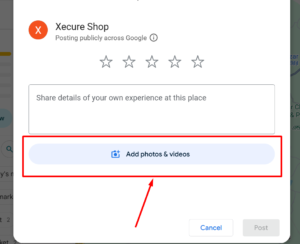
Step 6: Add photos or Videos (Optional)
If you want to add some evidence to your experience, you can add some photos or videos if you want.
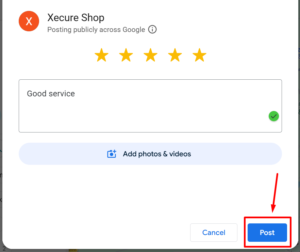
Step 7: Click on “Post.“
Check everything carefully, and if everything is correct, click the “Post” button. Then your review will be published.
How to Leave a Google Review Without an Account?
If you are wondering if you can leave a Google review without an account, the answer is no. To leave a review, each reviewer needs to sign in using a Google account.
But you can do one thing: you don’t need to use your original account; just click on “create a new account” and create a new Gmail, then submit the review.